Updating WordPress

Well… I like to make problems for myself.

In this instance, the problem was “simple”. I let WordPress get too far behind, PHP. In fact, WordPress has auto update enabled, but that doesn’t seem to update between major versions, so my WordPress were at version 4, while my PHP is now at 8. This made WordPress totally unusable, as a lot of functions used by WordPress has been ripped out of PHP.

The problem isn’t so much that WordPress is defective at that point… The problem is, that you no longer have access to the administration console, and thus need to do a totally manual upgrade of WordPress.

I found a nice little recipe for how to do it at https://wordpress.org/documentation/article/updating-wordpress/ (Hurray for documentation), and followed the Manual Upgrade procedure. Obviously I couldn’t deactivate plug-ins, but otherwise everything went smoothly.

One problem left… Well a few actually.

  1. No visual editor in the new install, so had to install classic editor plug-in.
  2. Checkmarks in the dashboard seem to be invisible. They’re there, but I can’t see them. This has not been solved at this time.
  3. Permissions in file system had to be corrected to allow the installation and updating through the dashboard and a setting had to be added to the configuration (define(‘FS_METHOD ‘, ‘direct’) in wp-config.php).

Working on it.
Clearly I’m not writing much…

Clearly I’m not writing as much as I had intentions of doing. No matter, I’ll just have to pick myself up by the collar, shake myself and get to writing now and again.

The intentions was, that once the printer was up and running, I would have some running posts about what was being printed, and the files needed for the print. I’m not all that good at documenting my progress, so while I’ve been printing, I haven’t really established a format for these posts or how I’m going to put up the files that are needed to print.

I guess I’ll just have to get on with it sometime.

In the meantime, Prusa Research has started sending out their multi material upgrade kit. I haven’t been notified of shipping yet, but I’m looking forward to that. I’m also considering the Mk2s upgrade

I’ll just have to see if I want that Mk2s upgrade enough to go for it. Long lead time and expensive shipping, as I can’t get it bundled with my MM upgrade.

It’s on it’s way

Finally got confirmation. My new 3D printer is working it’s way from the Czech Republic. It should arrive sometime next week.

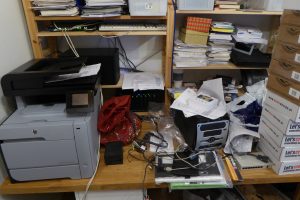
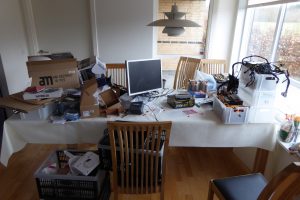
Before it arrives, I do have a bit of a challenge on my hands. As it is a kit version of the printer, I need to get some space freed up to assemble the thing. The problem is, that this is where I’m going to assemble it:

Mess on the dining table

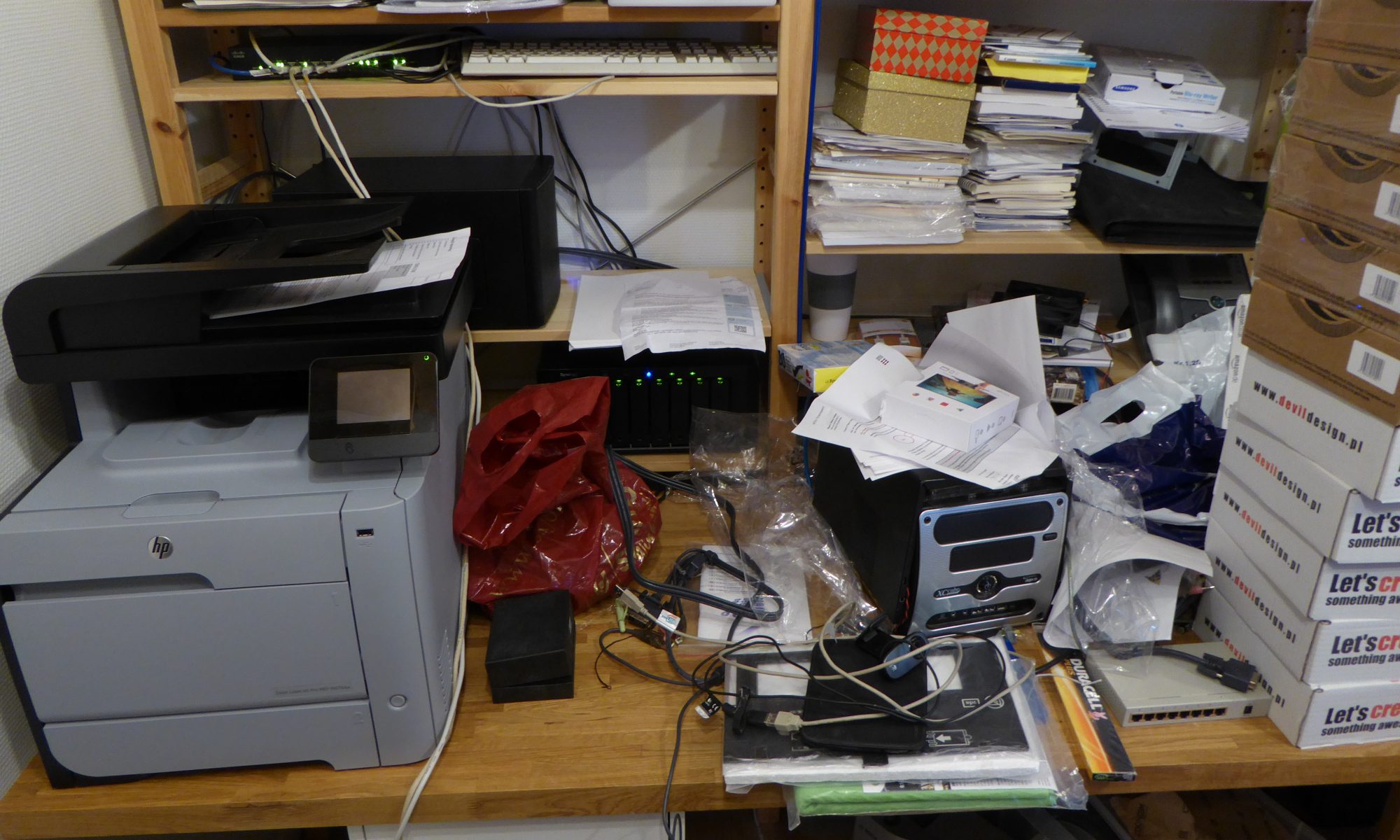
and this is where it’s going to placed, once it’s finished:

Mess in the office

Clearly, some much needed cleanup is in order…

Changing IP addresses

And suddenly my ISP decided I needed a new IP address, even though I’ve paid for fixed IP address, and therefore – usually – get notified of changes to the IP address.

As I’ve just changed to new hardware, my first thought was that the RAM was defective, but once I got to the machine, this proved to not be the case. Lucky as RAM is expensive when using 16GB sticks.

Oh well… Once I contacted the ISP, they reprovisioned my cable modem, and presto – no change occurred.

My setup is as follows:

  • ISP provided cable modem in bridge mode
  • Cisco router that gets assigned IP address from ISP (instead of the modem)
  • Internal network.

The problem is, that the connection needs to be activated when the IP is changed. The new IP is then associated with the MAC address that activates the connection. The activation is done by the first connection to the outside via a browser.

After some time, I found that the following procedure would let me get the correct IP address assigned to the modem:

  1. Clone the router MAC address to an PC.
  2. Connect PC directly to modem.
  3. Disconnect router from modem (pull the cable).
  4. Factory reset modem.
  5. Access admin interface of modem.
  6. Reconfigure modem to use bridged mode.
  7. Once the system comes back up, the PC should be assigned the external IP.
  8. Activate the connection. This makes the modem reboot.
  9. Disconnect PC before modem comes back up, then reconnect the router.
  10. Remember to remove the cloned MAC address from the PC, as two identical MAC addresses in a network might get you into network trouble.
  11. Update your external DNS to point to your new IP address.

Easy, once you know what to do. The trouble is remembering what to do those few times a year you need to do it.

And just for completeness sake: Changing the MAC address on a Windows 10 can be done from the adapter interface configuration, advanced tab, Network address, but that is better described here (just ignore the driver update plug): http://windowsreport.com/mac-address-changer-windows-10/


Getting ready for a 3D printer

I’ve ordered a 3D printer some time ago, and now the time for its arrival is getting nearer and nearer. They might even ship it in the next week or four.

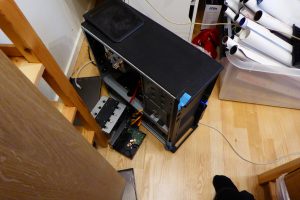
To the the space for the printer, some cleanup is needed. Specifically, I need to replace this:Tyleet ready to be taken down

With this:

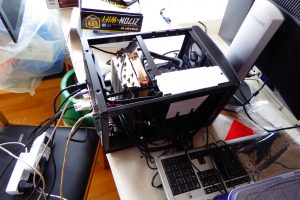
New Leetah being installed

I know. It doesn’t look like much of an improvement, but considering that the first one is a Core2 3.0GHz from 8 years ago, and the new one is an I7-6700K from a few months ago, the difference is huge. The footprint of the case will be a lot less, and due to the fans in the old system being as old as they are, the noise level will be considerably less. I do actually intend closing it up once I’ve finished the basic installation and checked that things are working.

What is it:

  • Motherboard: GigaByte Z170 Mini ITX board
  • CPU: Core I7-6700K
  • Ram: 32GB
  • HDD1: M2 NVME 250GB
  • HDD2: 3TB WD Green
  • PSU: Seagate Fanless 520W Platinum
  • OS: Debian Jessie

The one problem I’ve had so far, has been that the power draw was too low. This made the PSU switch off. The solution was to enable dummy load in the BIOS, and now it’s working without problems.

For the curious: In normal operations it’s drawing a whopping 23W. When trying to do a full load with HDD access and full processor load, it’s drawing all of 57W. Much better than the old system that was idling along at 78W and had a top load of 110W. It’s gotten so that the heater in the office now has to switch on now and again, due to the 60W less being pumped out continually.

Rejecting mails falsely claiming to come from my own domain

For some time now, I’ve been annoyed by spam mail claiming to come from my own domain.

I’m running my own mail server (postfix), so the solution should be simple, right?

I finally took the time to look into it. Using the big manual (google), I found a working solution.

In /etc/postfix/main.cf:

smtpd_sender_restrictions =
        permit_mynetworks,
        permit_sasl_authenticated,
        check_sender_access     pcre:/etc/postfix/check_sender.pcre,
        ...

And then in /etc/postfix/check_sender.pcre I added the following line:

/@mydomain.com$/   REJECT Misuse of local recipient domain.

The system now correctly rejects mail that comes from the outside and tries to send as my own domain.

Thank you to Insyte at serverfault.com for the answer: SMTP-AUTH required for local domains?


A new blog

So, this is my first attempt to actually do a blog. As I’m getting a 3d printer (my first), I thought this was the time to start a blog about it.

I don’t know yet what I’ll be writing in detail, or how much detail I’ll be writing, that’ll become clear as time goes on.

I suspect that most of what I’ll be writing will just be a bit of brain dumps that happens at the time. Most of the posts will probably be the length of this post, or even shorter. We’ll see.